Prerequisites
- The CLI installed — see Install.
- Interactive shell from container (Docker only) — see Run interactively.
- A model pulled.
geniex servedoes not auto-download models.
Start the server
Pull a model:bash
bash
http://127.0.0.1:18181 by default. Keep this terminal open and make requests from another one. Run geniex serve -h for all configurable options.
POST /v1/chat/completions
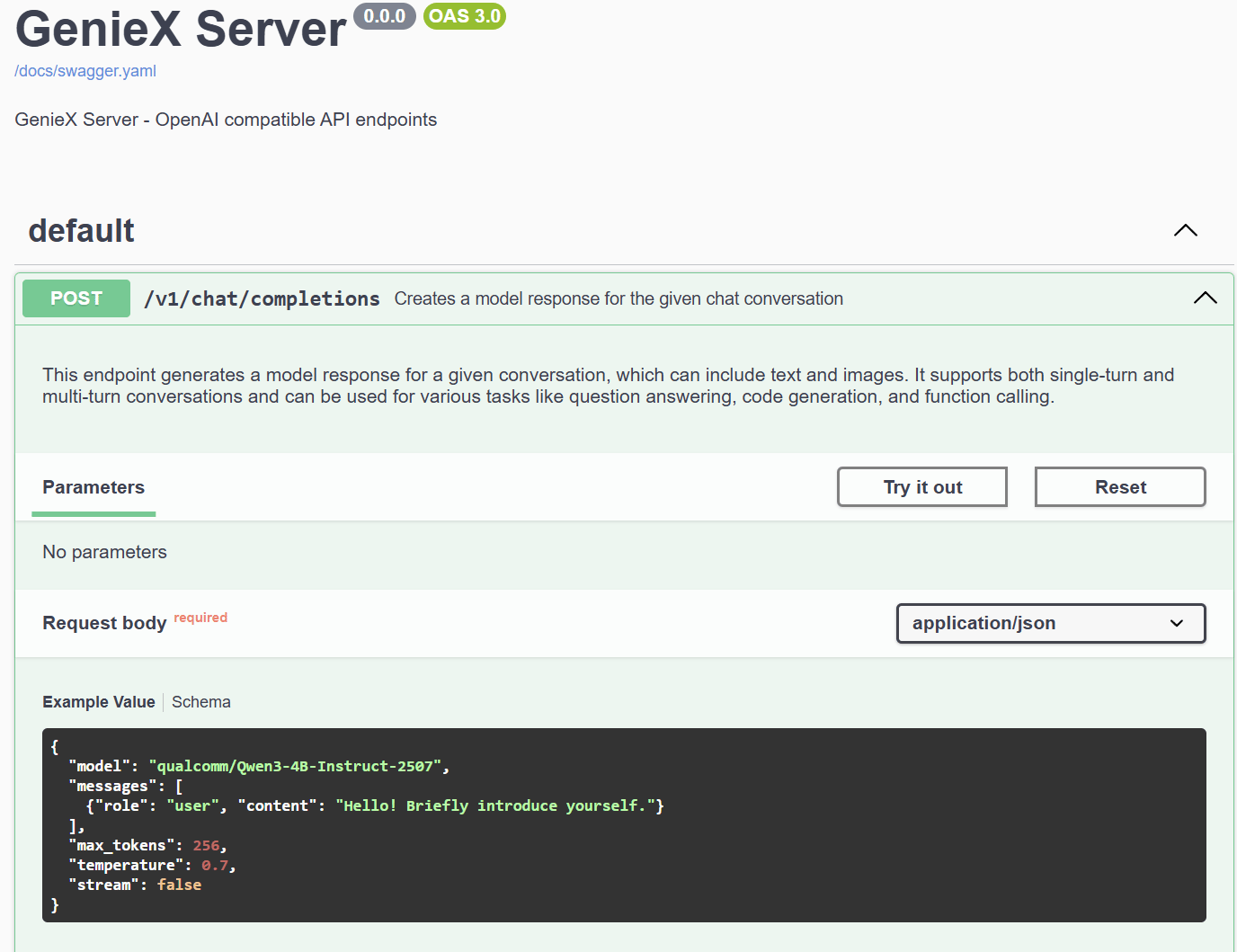
Creates a model response for a conversation. Supports LLM (text-only) and VLM (image + text).LLM request
Example Value
Try it from Swagger UI
Openhttp://127.0.0.1:18181 in your browser to access the built-in Swagger UI.
Step 1. Expand the POST /v1/chat/completions endpoint to view the example request body and schema.
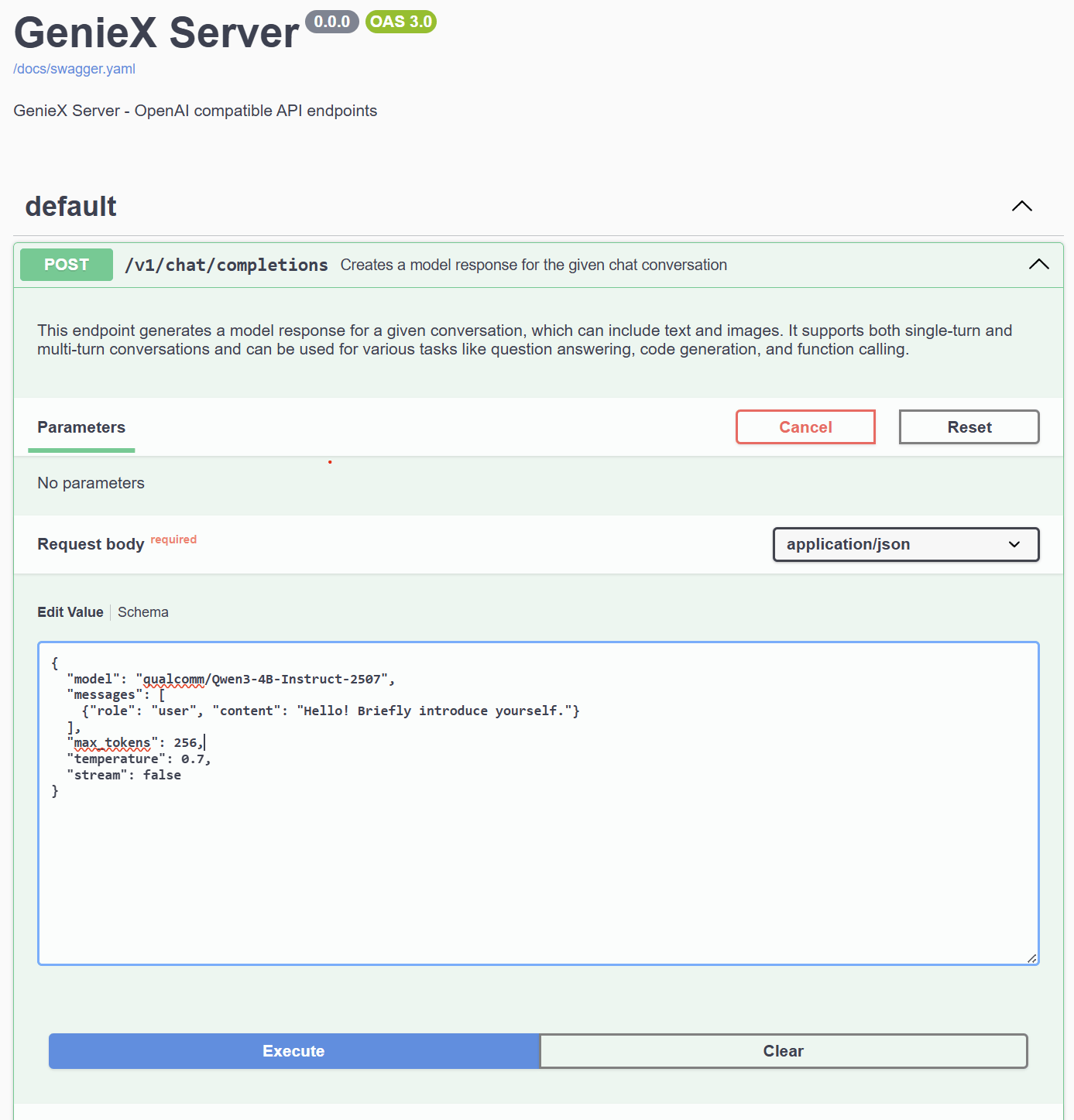
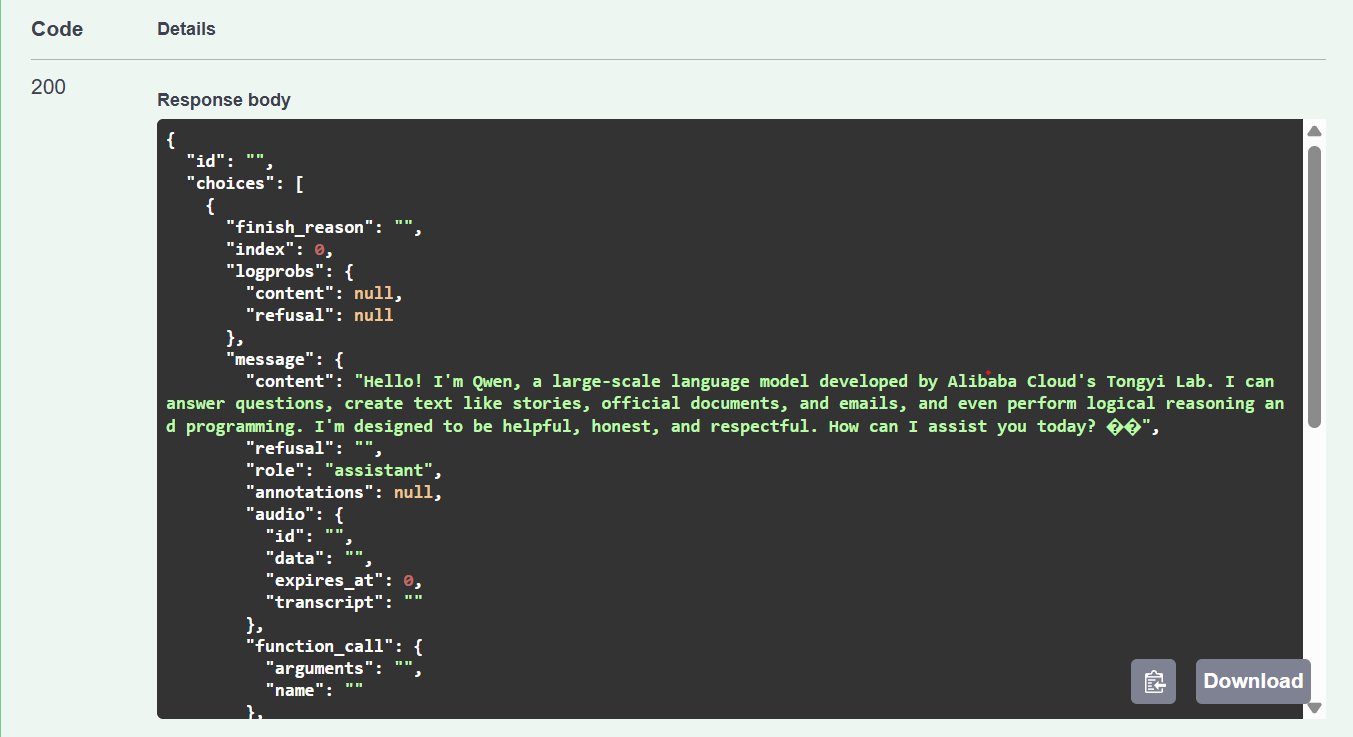
200 status with the model’s generated reply.
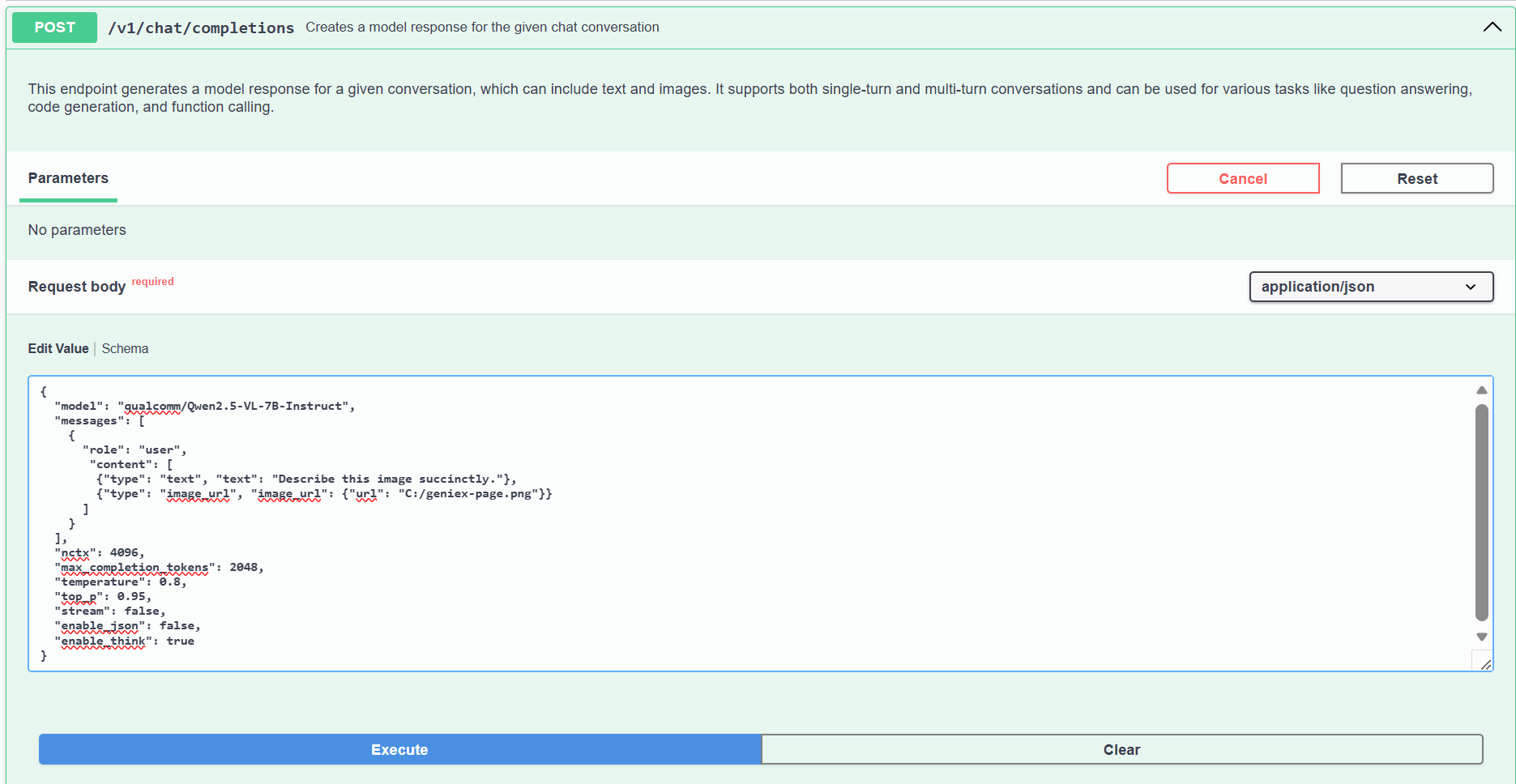
VLM request
image_url.url accepts three formats:
Running in Docker? Local paths are resolved inside the container, not on your host. The install command already mounts
$PWD/data to /data — drop your images there and pass /data/cat.jpg. Alternatively, use an HTTP URL or base64 data URL to skip the filesystem entirely.Example Value
image_url.url to a local image, then click Execute.
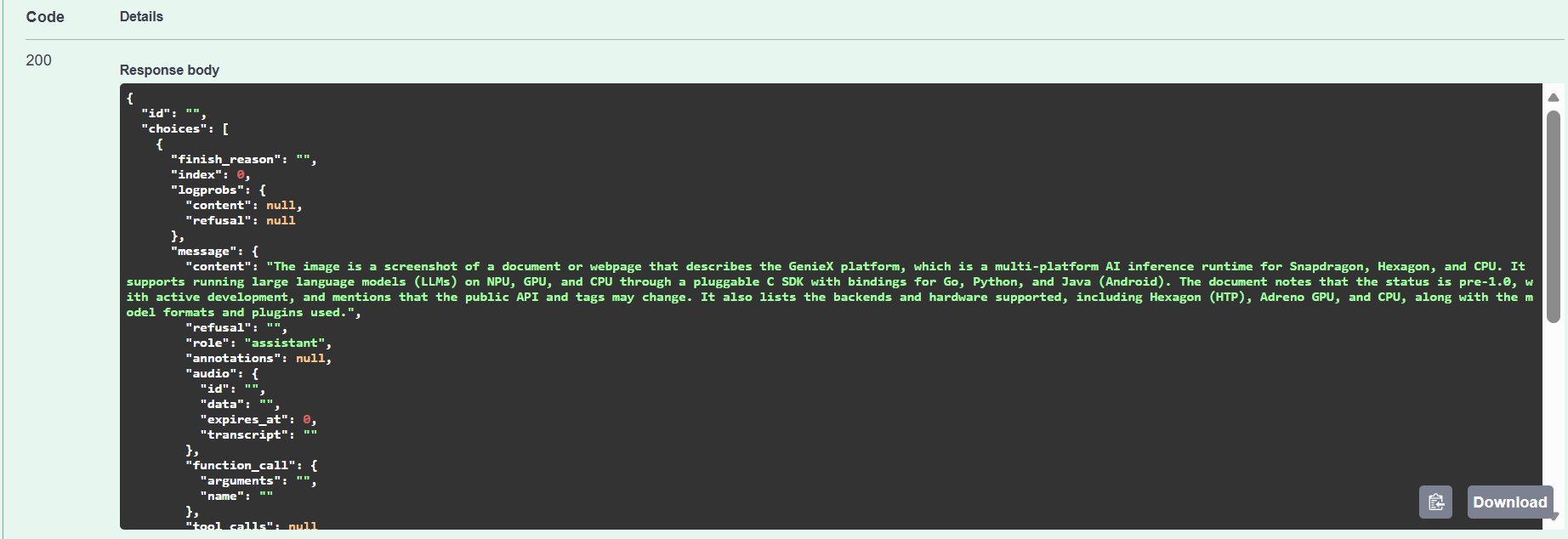
Python client (OpenAI SDK)
Because the server speaks the OpenAI protocol, you can point the officialopenai Python client at the local endpoint and reuse any existing OpenAI code. Install with pip install openai, then create a client:
python
client. Replace the model value with a model you have already pulled. The optional :<precision> suffix (e.g. Q4_0, Q4_K_M, Q8_0) selects a quantization variant — Q4_0 is recommended for llama.cpp on Hexagon NPU. See Precisions (Quantizations) Supported.
Streaming
Print each delta as it arrives:python
Chat completion (non-streaming)
Single request, single response, no streaming — the standard OpenAIchat.completions.create shape. The enable_think=False extra parameter turns off Qwen3’s default <think>…</think> reasoning prefix so the reply content stays clean.
python
Separating reasoning (reasoning_content)
By default a thinking model leaves its chain-of-thought inline inmessage.content (<think>…</think>), mixed in with the final reply. Pass reasoning_format="deepseek" to make the server move the chain-of-thought into the OpenAI-standard message.reasoning_content field, leaving content clean.
reasoning_format is not the same as enable_think: enable_think=False makes the model not produce a chain-of-thought at all, while reasoning_format="deepseek" lets it think as usual but moves the thinking out of content. Values are none (default, kept inline) and deepseek / deepseek-legacy / auto (all separate). Tool-call requests ignore this parameter (tool parsing needs the raw tagged text).python
delta.reasoning_content deltas and the final reply as delta.content.
Tool calling
Function/tool calling uses the standard OpenAItools schema. The server extracts the tool call from the model’s generated text (<tool_call>…</tool_call> tags or a fenced ```json block) and re-emits it as OpenAI tool_calls. The flow works with VLMs too — the model can look at an image, decide what to search for, and call a tool.
The example below walks through a two-step agentic loop with qualcomm/Qwen3-VL-4B-Instruct: (1) the VLM identifies a landmark from a photo and calls web_search, (2) you execute the search locally and feed the results back so the VLM writes a grounded reply.
Only one tool call per assistant turn is parsed — parallel tool calls in a single response are not supported.
Two Qwen3-VL specifics for reliable tool calls:
- Prime the model with a system message that spells out the
<tool_call>…</tool_call>shape (Qwen3-VL’s chat template does not enforce it as strongly as Qwen3’s text-only template). - On the follow-up turn, drop
tools=and drop the image content frommessages— this stops the VLM from re-invoking the tool and avoids re-running the vision encoder on the same image.
pip install ddgs — DuckDuckGo, no API key required), then:
python
Other endpoints
GET /v1/models— list available models.GET /v1/models/{model}— get info about a specific model.
Was this page helpful?